Google sheet news letter
By E.K.Danquah

- Published on
Sharing
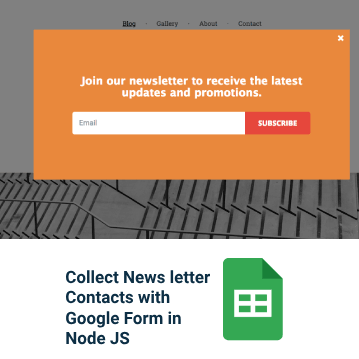
Storing Newsletter Subscriptions in Google Sheets with Next.js
Overview
This guide explains how to set up a simple newsletter subscription system in a Next.js application using the App Router, where submitted emails are stored in a Google Sheet without requiring OAuth user confirmation.
Steps to Implement
1. Set Up a Google Service Account
- Go to the Google Cloud Console.
- Create a new project.
- Navigate to IAM & Admin > Service Accounts.
- Click Create Service Account and fill in the details.
- Assign the role Editor or Owner.
- Generate and download the JSON key file.
2. Share Google Sheet with Service Account
- Create a new Google Sheet.
- Click Share and grant edit access to the service account email (
[email protected]). - Copy the Spreadsheet ID from the sheet’s URL.
3. Store Credentials Securely
- Place the downloaded JSON file inside your project under
/config/service-account.json. - Add the Spreadsheet ID to
.env.local:GOOGLE_SHEET_ID=your_spreadsheet_id
4. Create the API Route in Next.js
Create a new API route at src/app/api/subscribe/route.ts:
import { google } from 'googleapis';
import { NextResponse } from 'next/server';
import path from 'path';

const SPREADSHEET_ID = process.env.GOOGLE_SHEET_ID!;
const SHEET_NAME = 'Sheet1';

export async function POST(req: Request) {
  try {
    const { email } = await req.json();

    if (!email || !/\S+@\S+\.\S+/.test(email)) {
      return NextResponse.json({ message: 'Invalid email address' }, { status: 400 });
    }

    const auth = new google.auth.GoogleAuth({
      keyFile: path.join(process.cwd(), 'config/service-account.json'),
      scopes: ['https://www.googleapis.com/auth/spreadsheets'],
    });

    const sheets = google.sheets({ version: 'v4', auth });

    await sheets.spreadsheets.values.append({
      spreadsheetId: SPREADSHEET_ID,
      range: `${SHEET_NAME}!A:A`,
      valueInputOption: 'RAW',
      requestBody: { values: [[email, new Date().toISOString()]] },
    });

    return NextResponse.json({ message: 'Subscribed successfully!' }, { status: 200 });
  } catch (error) {
    console.error('Error saving email:', error);
    return NextResponse.json({ message: 'Failed to save email' }, { status: 500 });
  }
}
5. Create a Simple Subscription Form
In your frontend component:
'use client';
import { useState } from 'react';

export default function SubscribeForm() {
  const [email, setEmail] = useState('');
  const [message, setMessage] = useState('');

  const handleSubmit = async (e: React.FormEvent) => {
    e.preventDefault();
    setMessage('');

    const res = await fetch('/api/subscribe', {
      method: 'POST',
      headers: { 'Content-Type': 'application/json' },
      body: JSON.stringify({ email }),
    });

    const data = await res.json();
    setMessage(data.message);
    setEmail('');
  };

  return (
    <form onSubmit={handleSubmit}>
      <input
        type="email"
        value={email}
        onChange={(e) => setEmail(e.target.value)}
        placeholder="Enter your email"
        required
      />
      <button type="submit">Subscribe</button>
      {message && <p>{message}</p>}
    </form>
  );
}
6. Run Your Application
Start your Next.js application:
npm run dev
Your users can now subscribe, and their emails will be stored in your Google Sheet!
Conclusion
This setup enables a simple, OAuth-free way to collect email subscriptions in Google Sheets from a Next.js app using the App Router.